
About
RadioSparx Scandinavia
What is RadioSparx?
Offering commercial background music service since 2011, our RadioSparx motto, “Change your Music, Change your Life…”, resonates with our clients around the globe who recognize the right mood throughout the day enhances both customer and employee loyalty, and often increases sales and client satisfaction. Our high-quality, curated music subscriptions save you money while you enjoy world-class music uploaded daily from our 7,700 talented artists, bands, orchestras, and ensembles from around the world.
With our direct-licensed music, you NEVER have to pay ASCAP, BMI, PRS, PPL, and other Performance Royalty Organization (PRO) Societies around the world, offering a great savings to our clients. Check out our GREAT background music (also called in-store music, ambient music, or environment music) – now serving a wide array of industries and vertical markets in 100 countries.
The world’s largest royalty free online music service for shops, restaurants
Unique music service for businesses RadioSparx is the world's largest music service for approved royalty-free music for shops, restaurants, and businesses, and is represented in Scandinavia, the UK, and the Baltic countries by "RadioSparx Scandinavia". At RadioSparx...
Background music in shops and restaurants increases sales
Background music for shops Background music in shops and restaurants increases sales! Did you know that studies have been carried out which show that background music can increase your turnover. Music makes customers relax, so they stay longer in the store and...
Play your own commercials in your business
Own advertisements and spots With a RadioSparx music solution, it becomes easy and fast to carry out advertising strategies and easily respond to rapid changes in needs. As an additional service, we offer the production of advertising spots at favorable prices. Spots...
The Next-Gen Internet Music Service
With a focus on providing commercial in-store background music service, RadioSparx has many advanced features that make it perfect for use in commercial business premises of all types and sizes as well as on transportation systems such as air lines, cruise lines, metro lines, etc. RadioSparx offers a huge rights-cleared, direct-licensed catalog and professional service features such as custom stations, custom schedules, custom ads, player monitoring, and much more.
With service from RadioSparx, your business can finally take control of your music service across a local, regional, national, and even international territory. Learn how clients such as McDonalds, Pizza Hut, Dairy Queen, Hilton, Dominos, Victorinox, Natuzzi, and many other top-tier brandnames are leveraging the capabilities of RadioSparx around the world today.


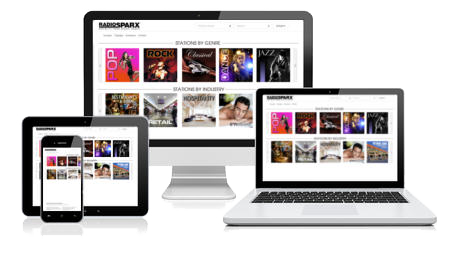
Computer Hardware Options
Our service runs on desktop PCs, laptops, tablets, notebooks, and mobile phones. Supported operating systems include Windows, Android, and iOS (iPhone, iPad, iPad Touch, Macintosh, etc.), and more.
Software Options
Play the music in your browser with the media player that is built into the website’s homepage. Or use RS-PLAY software (for Android, Windows, and iOS) to play music in either streaming or caching mode. With caching mode, the player downloads and stores your configured music choices on your player device for local playback. This protects you against loss of music in the event your Internet service goes down for some time.
Questions and answers
Get answers to your questions right here!
What Is Royalty Free Music?
Radiosparx has more than 500.000 royalty free different music track you can play in your business without buying a license.
Our artists, musicians and composers are not registered with PRS and PPL.
Radiosparx pay the artists, musicians, and composers directly.
Is Royalty Free Music Legal?
Yes! You can find confirmation here Gov.UK website
See the chapter “Who Needs a Licence”
How do I Swap to Royalty Free Music?
If you decide to use Radiosparx and start playing royalty-free music you may…
- Confirm to PRS/PPL that you’re using Radiosparx who supply you with royalty-free music.
- If PRS/PPL request evidence, you can send them a copy of your Radiosparx agreement
- If PRS/PPL wants confirmation from Radiosparx we can send it for you.
How You Can Avoid Paying for a Music License?
Start using Radiosparx and play royalty free music.
We have 3 subscriptions that will fit your business no matter if you have a local shop or a large shop or retail chain. See our subscriptions here.
Can multiple "users" access an account simultaneously?
For each contact person that is added to the master account, they can use their email address as their sign-in username, provided that their email address is not used on any other account. Additionally, there is only a single password for the master account which must be shared among the users who will access the account.
Separately from the master account, with our multi-user service option, you have additional “user” accounts under your master account, one for each location needing service. Each user account has its own separate sign-in username and password and is assigned for use at a designated location, venue, vehicle, etc. to access an independent music stream at RadioSparx.
For music playback purposes, your master account, as well as each user account, can only be used on a single player device for purposes of playing music. If you try to use the same account on multiple computers simultaneously, the music will be stopped automatically for one of the players.
How to Create a Custom Schedule to Play One or a Set of Multiple Stations
To create a custom schedule, follow the steps below:
1. Click on Account at the top right of the site to access your account features.
2. Click on the Custom Schedules option, then click the “+Add New Schedule” link at the top right of the schedule table.
3. Give the schedule a descriptive name, then click CONTINUE button.
4. On the Schedule Settings screen, click the “+Add Event” link at the top right of the events table.
5. Select a start time for this new event, which will control when the selected station(s) will start playing. If you just want the same set of stations to play all the time for whenever you are playing music, leave the start time at 12:00 AM (midnight).
6. Below the “Select Stations” text, in each of the drop-down listboxes, select a station that you want to play during this event. You can select up to five different stations to play in rotation.
7. For the Station Rotation Method field, select either “Random Rotation” to make the selected stations play in random order, with one track played at random from the selected stations, or select “Round Robin Rotation” to have the site play one track from each selected station in successive order and then loop back to the first station. For example, the round-robin option works well for Christmas time to play the Pop Vocals station and the Christmas Pop Vocals station, so that every other track will be a Christmas track and the other track will be a non-Christmas track from the Pop Vocals station, since it will play one track from each station then go to the next station in the list of selected stations.
8. Click SAVE button at the bottom of the screen to save the configuration settings for this event.
9. If you want to add another event to have a different set of stations play at a different time, repeat the process above starting at Step 4, and choose a different start time and a different set of stations.
10. If you want the music to automatically stop playing at a certain time of day, add one more event, select the time the music should stop playing, and set the first station drop-down listbox field to the “Stop playing” option, and save the event.
11. At the bottom of the Schedule Settings screen, select which of your users or user groups you want the schedule to take effect for by checking the box next to each one. Or to make the schedule be in effect for all of your users, simply check the “All sub-users/sub-accounts” option.
12. Click on the SAVE CHANGES button at the top right of the Schedule Settings screen to get back to your list of Custom Schedules.
13. The last step is to activate the new schedule by clicking on the red “INACTIVE” button on the left side. When you click it, the button will turn green and then say “ACTIVE”. This lets you know that this schedule is now active for all of the users that you selected during step 11 above.
Miscellaneous Issues
For any users that the schedule is active for, when they refresh the home page of the site, they will see a new schedule icon at the top left of the homepage, above the list of preconfigured stations. To start playing the schedule, click that icon, and the new schedule will start playing. You can reconfigure the settings for the schedule at any time and the new settings will automatically take effect for all users playing that schedule.
If a user has a schedule activated for them and they try to play some other station that is not in the schedule, the schedule will override their choice and play only music from the scheduled station(s) instead.
The Custom Schedules feature is how you will control what music a dedicated hardware player device (e.g. a Streamit Lisa LCD or Lisa Compact) will play when they connect to the RadioSparx site. You can configure a custom schedule for the client to play just a single station, or multiple stations at once in random or round-robin (sequential) rotation, and can even schedule different events throughout the day to cause the music playlist choices to change throughout the day, to alter the tempo and energy to suit your tastes for any particular time of day.
Can I play ads every hour?
Yes, by using the Custom Ads feature, you can upload MP3 ads to your account, schedule their start date and start time, and how frequently they should play (e.g. every 60 minutes).
You can configure each ad to either play between music tracks, or to play immediately at its scheduled time in case the ad is time-sensitive and needs to play at an exact moment in time.
Does the music at RadioSparx include major label tracks?
RadioSparx does not include such music, however, it does include fantastic new music from highly successful independent music artists, as well as new up-and-coming music artists from around the world. In short, RadioSparx provides a great opportunity for you, your clients, and your staff to discover the hot new music from the coolest new independent music artists in the world today.
Our music puts you at the forefront of taste-making, and will separate you from other businesses that play over-saturated major label music. The commercial value of becoming a leader in providing a NEW MUSIC and NEW ARTIST discovery experience is significant for your clients and staff!
The result for your business is that you will be perceived to be on the cutting edge with a totally unique music service that sets you apart from other competitors in your industry who play the same major label music that has been heard over and over thousands of times before. Your clients and staff will hear all-new music from artists they have never heard before.
RadioSparx is replacing major label catalogs around the world as we expand rapidly, now selling in 74 countries. We are able to do this because of the high quality of our music, creating for the first time a commercial music service for businesses that is a true alternative to major label music. In spades!
We focus on finding and signing extremely talented artists and music who prefer to remain independent and control their own music. Major label music has its positive qualities, but that just sets a high bar for us to meet and then exceed, and we rise to the challenge with high-quality playlists that have been refined over many years, with new tracks added daily.
Plus with RadioSparx, you can likely save at least 50% in the cost of deploying our music service in your business versus paying expensive society fees.
Give us a try with a 14-Day Free Trial and see what you think! Simply register online and sign in and your 14 Day Free Trial starts immediately.
How can I force the music to all be at a certain tempo or BPM range?
There are a few different ways to achieve this:
- Custom Schedule with Event BPM Filtering – If you are using a custom schedule, you can adjust each event’s configuration in your custom schedule to have each event play music within a certain BPM range. Click on the settings (gear) icon for each event, configure a low and high BPM range and save the event settings. Repeat this for each event you wish to affect in this way. Afterwards, make sure to click the GENERATE button from the Schedule Settings screen to deploy the event changes to the player device.
- Custom Station with Mix Wizard – You can quickly build a custom station with the new “Mix” feature, which lets you select exactly the genres you want to include, as well as a mood, and BPM range for the mix. This gives you quick control over creating a totally custom playlist. Please note that all the tracks that are selected by the wizard for your new playlist will be tracks from existing playlists here (i.e. only known, vetted tracks are used), however, all such tracks that are selected may not be 100% appropriate for what the client has in mind. It really depends on how diverse you get with the genre selections, etc. during the mix creation phase. As a result, you may want to review the custom playlist that is created before deploying it to production.
- Create Custom Stations from Existing Playlists – You can create custom stations having exactly the music tracks you want to hear. To do this, go into Custom Stations, add a new station, then use the Load Playlist option on the black submenu, choose the genre, then choose the playlist to import. By importing any of our existing RadioSparx stations into your own station, you can then review the tracks and remove any you don’t wish to include.
- Utilize the Dynamic Track Suppression Option – Another way to manage this kind of process is to suppress any tracks which you hear playing but which you wish to exclude from future playback. This can be done by clicking the – (minus) button on the webplayer (if the track is still playing), or from the Play History Report if you’re using the R-Box or RS-PLAY. Generally it’s best to start with one of the options above and then use the suppress option later to fine tune your playlist on the fly.
How to Create a Custom Station
With Custom Stations, you can create one or more custom music playlists to play just the music you want to hear! This feature is available to clients with an active business or personal subscription. Custom stations give you full control over the playlist creation and track selection process.
Follow the steps described in the link to create a custom station.
We have 20 stores, can we control what music station plays from headquarters, so the same music plays in all 20 stores?
Yes, with RadioSparx, you can configure a Custom Schedule and force it to play automatically in all of your stores. With central administration control for Custom Schedules, Custom Ads, and Custom Stations (playlists), at the click of a mouse you can control the music throughout your entire enterprise, whether it’s for one store or one thousand!
Who Can Play Your Custom Station?
A custom station is simply a playlist created by you for your own use.
To add a new custom station playlist, click the +ADD STATION button at the top-right of the table below (under the Custom Stations option of the Account Menu). Then proceed to add your favorite tracks to the station by browsing through the various music genres, artists, or composers on the site and as you find tracks you like, click the Hotlist Icon and then select one of your custom stations to add the track to it immediately.
Or alternately, you can populate your playlist with tracks by loading in all the tracks from one of our existing playlists into your own playlist and then proceed to add, delete, and/or rearrange the tracks as desired, until you get it just the way you like it. To do this, first add a new station below and then click the Playlist Administration icon on the left side below to get down to the track level and then use the LOAD TRACKS option available there.
For multi-user accounts, under the Custom Station Settings screen, you can configure exactly who should have access to your custom station. You can enable it for your own account, or for all of your users and sub-accounts, or just for specific user groups or users, or any combination of these. If you intend to play the custom station, make sure to at least enable it for your own account.
Can I program the music to start every morning at 9 a.m. in case I arrive late, so the music plays automatically in our stores?
Yes, with the Custom Schedule feature, you can configure exactly when the music starts each day and which station it should play. You can even mix together up to five stations at once in random or sequential (round-robin) play order.
Please Note: The Custom Schedule option is an advanced feature available only with our commercial-level subscription service.
I'm not able to hear the preview tracks when trying to build a custom station. What can I do?
Our web sites utilize an audio player named “JPlayer” that is cross-platform compatible and supported in all of these environments:
- Windows: Firefox, Chrome, Opera, Safari, IE6, IE7, IE8, IE9
- OSX: Safari, Firefox, Chrome, Opera
- iOS: Mobile Safari: iPad, iPhone, iPod Touch
- Android: Android 2.3 Browser
- Blackberry: OS 7 Phone Browser, PlayBook Browser
Depending on your operating system and the underlying audio capabilities of your computer, the JPlayer may either use Adobe’s Flash Player technology for track playback, or HTML5’s native audio playback capabilities.
When you click on the speaker icon for any track you should see the waveform for that track appear at the bottom of the screen. As it starts to play, the waveform will turn blue as the playback progresses.
Is Your Computer’s Volume Muted or Turned Down to Zero?
Do you see the waveform and does it turn blue as the playback progresses? If so, and you are still not hearing any sound, this generally means that your computer’s playback volume is either muted or turned down to zero. If this is the case, please unmute your audio playback or increase the volume of the audio playback for your computer.
If you don’t see the waveform, or you do see the waveform, but nothing happens as far as any playback progress occurring, this could be caused by several different things.
Solutions
Repair Adobe Flash on Windows-Based Computers
If you are on a Windows platform, please make sure you have the latest version of Flash Player installed on your computer. To download the latest version, surf here and install the player: http://get.adobe.com/flashplayer/. After installation, then try the playback again for any track. If you still have problems hearing the preview tracks, first simply try reinstalling Flash. If you are still unable to hear the preview, try uninstalling the Flash Player and then reinstall it. Once you install this player you should be able to hear the preview version of all tracks on the site.
Use a Different Browser
Alternately, try using a different browser. If you are using Microsoft’s Internet Explorer browser, a relatively quick solution is to switch to Google Chrome. You can download and install Chrome very quickly from this link here: http://www.google.com/chrome
Reinstall Your Browser
If changing browsers is not an option for you, try uninstalling and then reinstalling your current browser. Sometimes the audio capabilities of the browser can get corrupted or jammed up for various reasons, so a reinstallation or an uninstall followed by a reinstall can solve the problem.
Contact RadioSparx for Assistance
After trying the various things above, if you are still unable to hear the previews, send an email to info@radiosparx.dk and let us know the following:
1. When you click the speaker icon for any track, does the waveform appear at the bottom of the screen?
2. Does the playback progress bar appear to move from left to right across the waveform?
Questions?
For any questions contact us at:
See pricing for subscriptions
Click on and see prices for our various subscriptions